Start Your First Meeting
Once the extension is installed, Atntiv works automatically during your meetings. This guide walks you through what to expect the first time you use it.
- Join a meeting
- Enable live captions
- The Transcript Window opens
- Insights start processing automatically
Before You Join
Make sure the following is ready before starting your first meeting:
- The Atntiv Chrome extension is installed and enabled
- You are using either Microsoft Teams or Zoom in Chrome
1. Join a Meeting
Join any Teams or Zoom meeting as you normally would. Atntiv detects the meeting automatically.
2. Enable Live Captions
Captions must be enabled for Atntiv to work. The process differs depending on your platform:
Microsoft Teams
- Click the More (…) menu in the meeting controls
- Select Show captions
- Confirm captions appear at the bottom of your screen
Zoom
Make sure your Zoom account is configured first. See Platform Requirements for setup instructions.
- Click Live Transcript at the bottom of the meeting window
- Select Enable Live Captions
- Confirm captions appear on your screen
3. Transcript Window Opens
Once captions are active, the Atntiv Transcript Window opens automatically and updates in real time during the meeting.
Learn more about the Transcript Window →4. View Your Insights
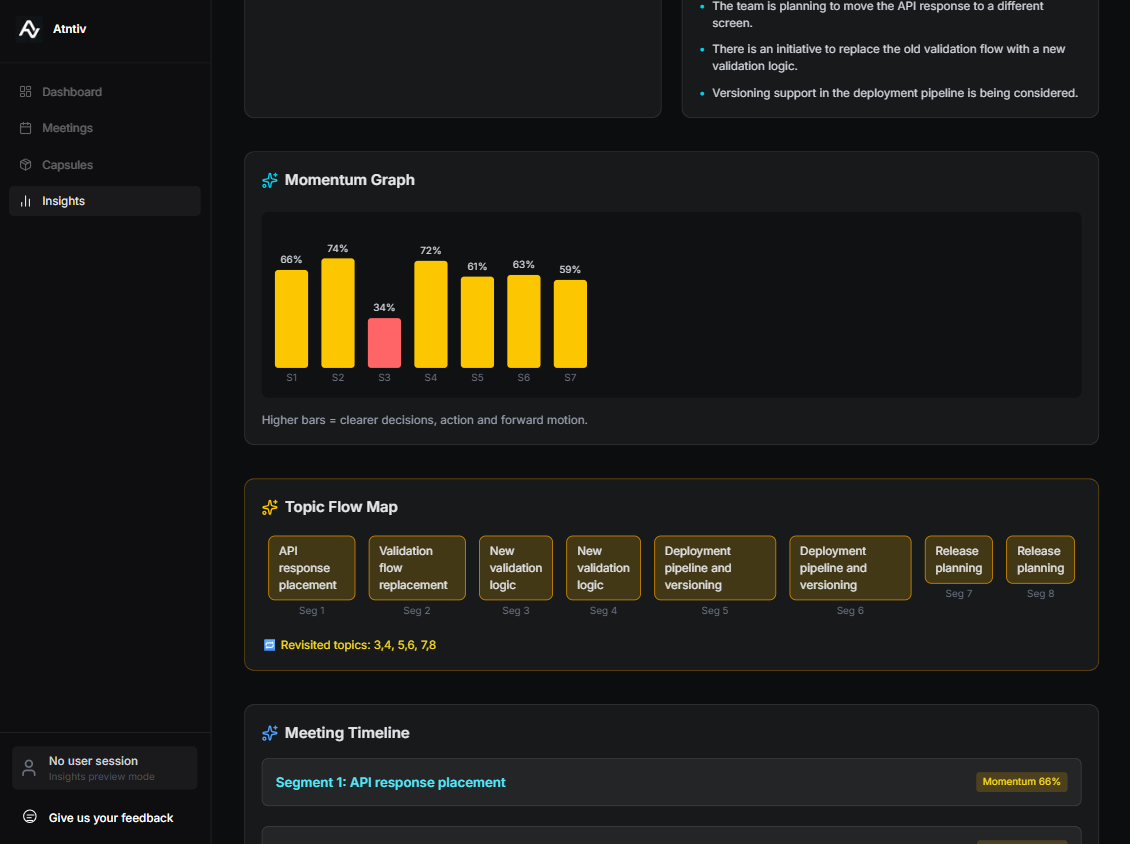
After the meeting, you can open your Insights Dashboard to review everything captured during the session.