Platform Requirements
Before starting your first meeting with Atntiv, make sure your platform is configured correctly. Different platforms have different requirements for enabling live transcription.
Microsoft Teams
Browser Compatibility
- Chrome, Edge, or Firefox
- Latest version recommended
Live Captions
Live captions can be enabled in two ways:
Option 1: From the More menu
- Click the More (…) menu
- Select Language and speech
- Click Show live captions
Option 2: Quick access with Atntiv button
Simply click the CC (Atntiv captions button) in the meeting controls to enable captions instantly.
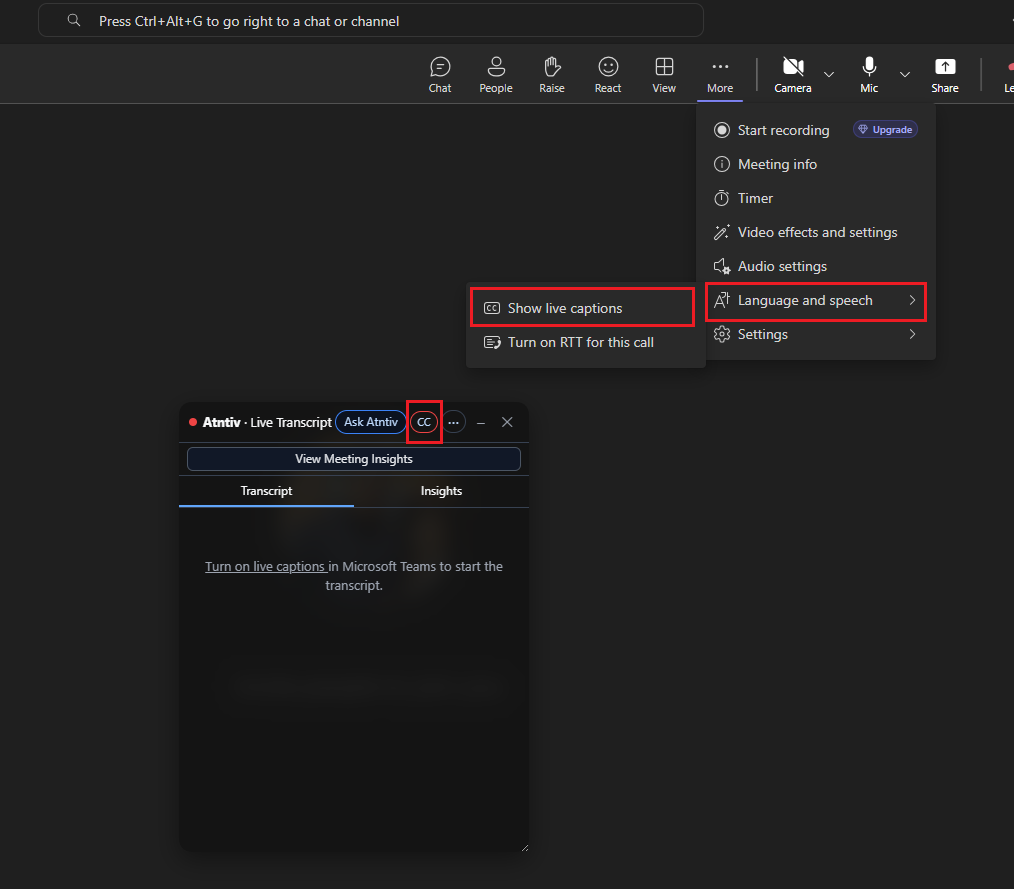
Good news: Teams requires no additional configuration. Just enable captions during your meeting and Atntiv will detect them automatically.
Zoom
Browser Compatibility
- Chrome or Edge
- Latest version recommended
- Zoom Web Client (not the desktop app)
Account Setup Required
Zoom requires account-level configuration before you can use live captions in meetings.
- Go to your Zoom account settings: https://app.zoom.us/profile/setting
- Find "In Meeting (Advanced)" section
-
Enable these options:
- Full transcript - Allows recording and viewing of full meeting transcripts
- Allow viewing of full transcript in the in-meeting side panel - Shows captions during the meeting
- Save your settings
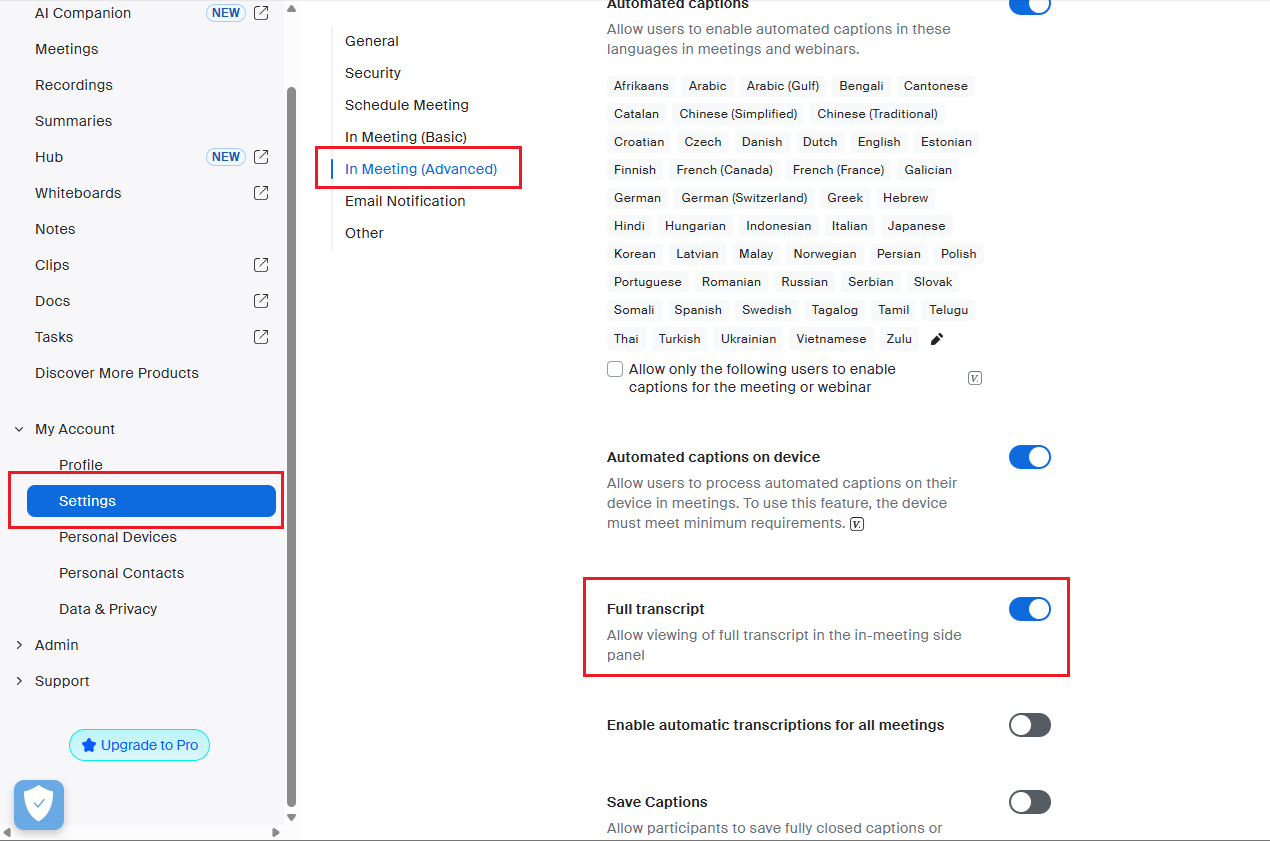
Important: These account-level settings must be enabled before joining a meeting. They apply to all your future Zoom meetings.
During the Meeting
Once account settings are configured, you need to enable two things in your meeting:
Step 1: Enable Live Captions
- Click Live Transcript at the bottom of the meeting window
- Select Enable Live Captions
Step 2: Activate Full Transcript
- Once live captions are enabled, click CC or captions icon again
- Select View Full Transcript or enable the transcript panel
- This displays the full transcript sidebar that Atntiv can read
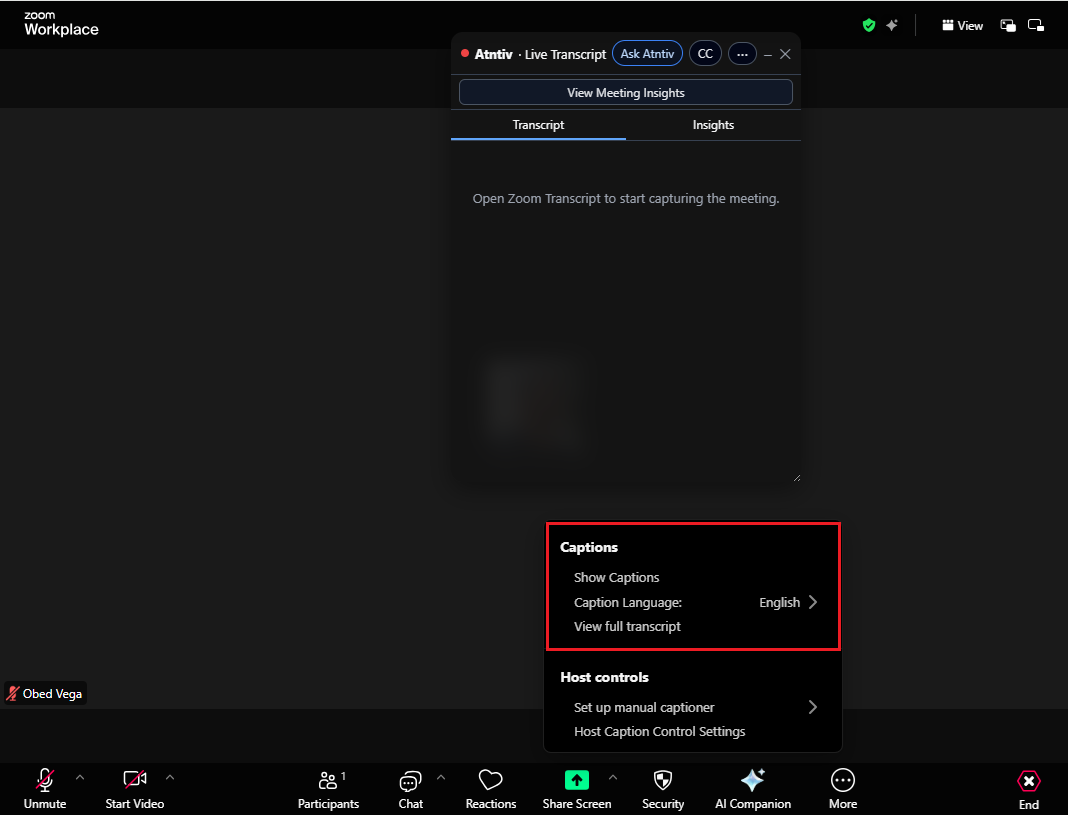
Important: Both live captions AND the full transcript must be active for Atntiv to capture everything correctly.